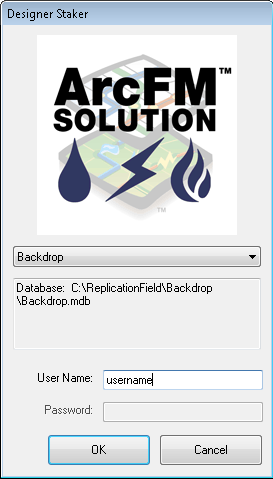
ArcFM Viewer for ArcGIS Engine and Designer Staker utilize the same login screen.
The Login screen allows the user to select a geodatabase. If you're working with a Mobile application such as Redliner or Designer Staker, you'll most likely choose a backdrop database.
Select a database from the pulldown menu, enter a user name and password, and click OK. A password is not required for an Access database.
If you have ArcFM Viewer for ArcGIS Engine installed, values may be added to the pulldown menu using the ArcFM Engine Administrator. See the ArcFM Engine Administrator online help for more information (available with Configuring ArcFM Solution online documentation). This option is not available if you only have Designer Staker installed.
Broken Data Sources
In ArcFM Viewer, broken data sources are indicated by no graphic representation in the map display. If you open a stored display that has broken data sources, they must be re-connected in ArcMap. ArcFM Viewer does not allow the user to re-connect the data sources.
In Designer Staker, a missing stored display or broken data sources are indicated by an error when attempting to open the application. Staker requires the existance of a stored display called "Electric Design", and that stored display must have connected data sources. If this stored display doesn't exist or has broken data sources, you must use ArcMap to create the stored display and/or connect the broken data sources. Designer Staker does not allow the user to create stored displays or re-connect the data sources.
